Table of Contents
- The “Paper Trail”: Defining Essential Documents for Your Corporate Collection
- Inside the Annex: How Onward Stores and Connects Your Assets
- Step-by-Step: Attaching Files Directly to an Artwork Record
- Master Your Filing: Naming Conventions for Provenance and Legal Records
- Universal Access: Syncing Documents Across Loans, Locations, and Private Rooms
- Fast Fixes: Troubleshooting Missing or Duplicate Documents
- Build a Habit: Creating a Repeatable Document Workflow for Your Team
If your art documents live in email threads, shared drives, and someone’s desktop, you’re not alone – and you’re one audit away from a headache. In Onward, every certificate, provenance record, appraisal, and loan agreement can live right where it belongs: attached to the artwork it describes. This walkthrough shows you, step by step, how to link those documents to each piece so your team always knows where to look.
The “Paper Trail”: Defining Essential Documents for Your Corporate Collection
In a corporate environment, an artwork is more than just a visual asset; it is a financial investment, a compliance requirement, and a piece of company history. When we talk about “linking documents” in a platform like Onward, we are talking about creating a digital paper trail that protects the organization’s interests.
For companies managing $10M+ collections, document management usually falls into four critical categories:
- Financial & Legal Proof: This includes invoices, bills of sale, and proof of payment. These are the backbone of any audit.
- Authenticity & Value: Certificates of Authenticity (COA), artist-signed statements, and formal appraisals. These ensure the collection’s valuation is defensible for insurance and tax purposes.
- History & Stewardship: Provenance records (the history of ownership), exhibition catalogs where the piece was featured, and condition reports that track the physical health of the work over time.
- Operational Logistics: Loan agreements, shipping manifests, and installation instructions.
By centralizing these in a dedicated art collection inventory management software, you eliminate the “information silo” problem. Instead of a facilities manager hunting through a retired VP’s old emails for a 2014 appraisal, the current team can pull up the artwork record in Onward and see the PDF instantly. This accessibility is vital for rapid insurance claims, leadership reporting, and making informed deaccessioning decisions.
Inside the Annex: How Onward Stores and Connects Your Assets
Rather than having files scattered across various “folders” that might get deleted or moved, the Annex acts as a single source of truth. Every high-res image and sensitive PDF is stored here with enterprise-grade security – including data backups every 15 minutes and 70 day retention cycles.
Onward uses a centralized architecture called the Image & Doc Annex. Think of this as the secure vault for your entire collection’s digital assets.
The magic happens through relational linking. You don’t just “upload a file to a folder”; you “associate a document with an artwork.” This means a single document in the Annex can be linked to a specific painting in your Inventory Management module.
Inside Onward, permissions are designed to be intuitive. While your entire art team might have “view” access to see a certificate of authenticity, you can restrict “upload” or “delete” permissions to specific administrators. This ensures that your provenance records remain pristine and protected from accidental alteration. Because Onward is built for corporate teams, not just solo collectors, this structure supports high-level collaboration without the complexity of traditional museum software. Purpose-built museum collection management software gives curators that same rigor with far less overhead.

Step-by-Step: Attaching Files Directly to an Artwork Record
Linking documents to your art pieces is a straightforward process designed to require zero formal training. Whether you are adding a new acquisition or backfilling records for an existing collection, follow these steps:
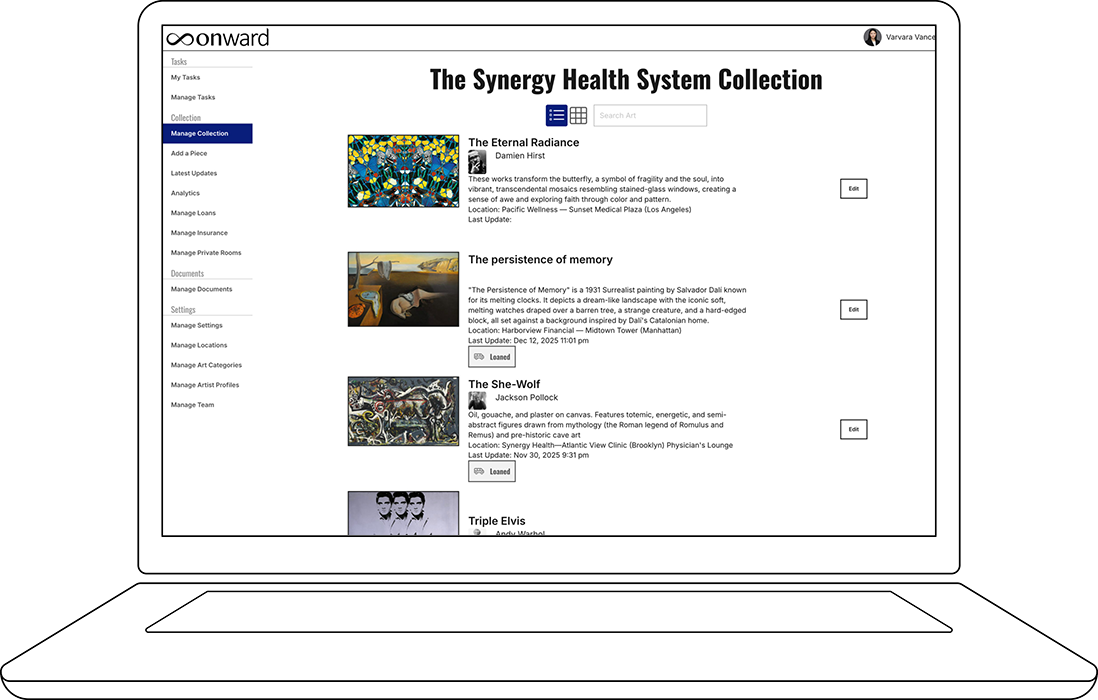
1. Locate the Artwork
Navigate to the Art Log or Inventory Management tab in the sidebar. Use the search bar or filters (such as Artist, Location, or Status) to find the specific piece. Click on the artwork’s thumbnail or title to open the full Detail View.
2. Open the Documents Section
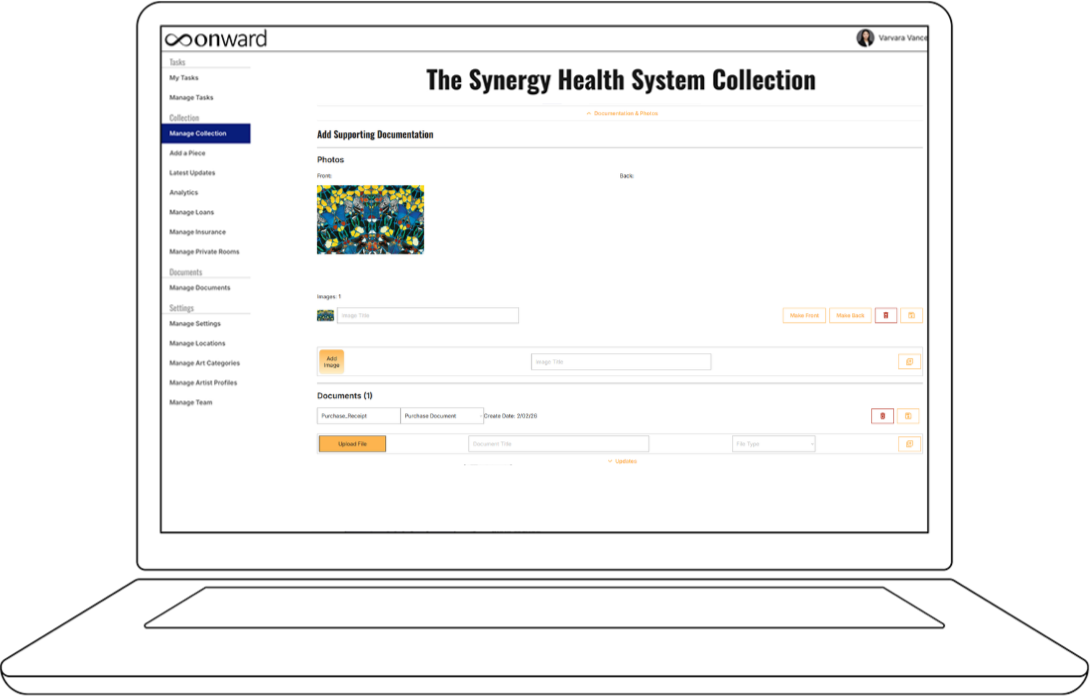
Once inside the artwork record, scroll down to the section labeled Image & Doc Annex or Documents. This panel displays all files currently associated with the piece.
3. Choose Your Upload Method
You have two primary ways to link a document:
- Direct Upload: Click “Add New Document” to select a file (PDF, JPG, PNG, or DOCX) directly from your computer.
- Link from Annex: If the document was previously uploaded to the general Annex but not yet tied to this piece, select “Attach from Annex” and search for the file name.
4. Add Metadata and Context
When the upload window appears, don’t just hit “Save.” Use the metadata fields to categorize the file. Select the Document Type (e.g., Provenance, Appraisal, or Insurance) and add a short note. For example: “2026 Valuation for renewal.”
5. Confirm and Preview
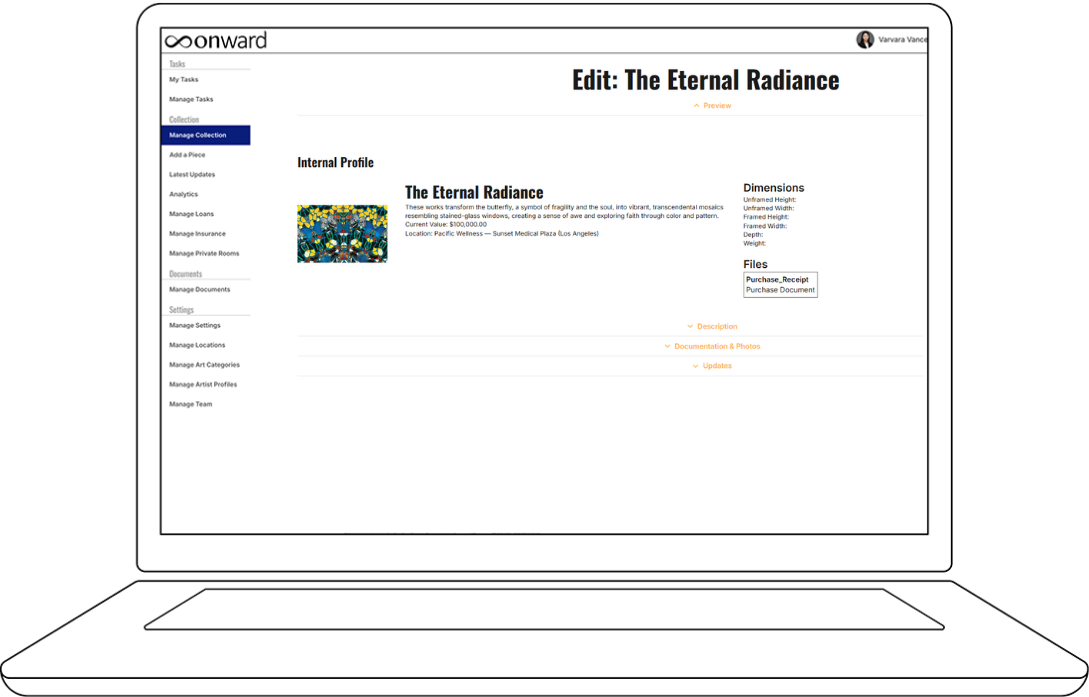
After clicking “Save,” the document will appear in the list. Click the file name to open a quick preview. This ensures the link is active and the file is legible. Any team member with access to this artwork can now see this document as part of the “single source of truth.”
Master Your Filing: Naming Conventions for Provenance and Legal Records
For a collection with hundreds or thousands of pieces, “File_123.pdf” is a recipe for disaster. To maximize the power of Onward’s search capabilities, your team should adopt a standardized naming convention.
Recommended Naming Convention
A consistent pattern allows you to find documents even if you aren’t looking at the specific artwork record. We recommend: [ArtistLast]_[ShortTitle]_[DocType]_[YYYY]
Naming Convention Examples:
- Law Firm Collection: Warhol_Marilyn_Appraisal_2026.pdf
- Healthcare System: Mehretu_Untitled_ConditionReport_2025.pdf
- Financial Institution: Stella_Protractor_BillOfSale_1998.pdf
Grouping and Version Control
Onward allows you to see the history of a piece. Instead of deleting an old appraisal when a new one arrives, keep both. Simply tag the new one as “Current” in the notes and the old one as “Archived.” This creates a historical valuation trail that is incredibly useful for long term financial planning.
By using the Document Type tags inside Onward, you can instantly filter your entire Annex to see “all insurance schedules” or “all loan agreements” across the whole company, regardless of which artist they belong to. This level of organization makes corporate audits a breeze.
Universal Access: Syncing Documents Across Loans, Locations, and Private Rooms
One of the primary benefits of linking documents directly to an artwork in Onward is that the information “follows” the piece.
- Location Management: When you move a sculpture from the Atlanta HQ to a satellite office, the certificate of authenticity and installation instructions remain linked to the artwork record. The facilities team at the new location can access those documents immediately.
- Loan Management: If you loan a piece to a museum, you can attach the specific Loan Agreement to that loan record. However, the piece’s permanent Provenance stays linked to the artwork itself. This distinction ensures that temporary paperwork doesn’t clutter the permanent history of the work.
- Private Rooms: When you create a Private Room for an exhibition or a board presentation, you have full control. By default, sensitive documents like “Invoices” or “Appraisals” are hidden from external viewers. You can choose to share only “Artist Bios” or “Exhibition Essays” with your guests, keeping your internal financial data secure.
This “link once, see everywhere” approach ensures that your team isn’t duplicating effort or looking at outdated versions of a file.
Fast Fixes: Troubleshooting Missing or Duplicate Documents
Even with the best system, mistakes happen. Here is how to handle the most common document hiccups in Onward:
1. Document linked to the wrong artwork
If you accidentally attached a Smith appraisal to a Jones painting, don’t worry. Open the Jones artwork record, find the document in the Annex panel, and click “Unlink.” Then, go to the Smith record, click “Attach from Annex,” and search for the file you just unlinked. You don’t need to re-upload it.
2. The “Missing” Document
If a team member swears they uploaded a file but it isn’t showing on the artwork page, use this checklist:
- Check the General Annex: Search by file name in the main Image & Doc Annex tab. It may have been uploaded but never linked to a specific piece.
- Verify Permissions: Ensure the user has “View” permissions for that specific sub-collection or category.
- Check Filters: Ensure you haven’t applied a filter (like “Show only Appraisals”) that might be hiding the document you are looking for.
- Confirm Upload Completion: Large high-res files can take a moment. Ensure the upload progress bar reached 100% before the browser window was closed.
3. Duplicate Versions
If you find three copies of the same insurance document, compare the “Date Added” metadata. Keep the most recent or the most legible scan, add a note to it confirming it is the master copy, and archive or remove the others to keep your record clean.
Build a Habit: Creating a Repeatable Document Workflow for Your Team
To ensure Onward remains a powerful tool for your organization, we recommend establishing a simple “Document Workflow.” This prevents the backlog of unlinked files from growing.
The “48-Hour Rule” for New Acquisitions: Whenever a new piece is added to the collection, the responsible coordinator must link the following three documents within 48 hours:
- Invoice or Proof of Purchase
- High-resolution Image
- Certificate of Authenticity (if applicable)
Quarterly Document Health Check: Assign one team member to spend one hour every quarter performing a “health check.” They should pick five random artworks and ensure all linked documents are correctly named and categorized. This small habit prevents “data decay” and ensures the system remains reliable for years to come.
Annual Appraisal Uploads: If your company performs annual or bi-annual valuations for insurance renewals, make it a standard task in Onward to upload the new bulk appraisal and link the relevant pages to individual artworks.
For government-managed collections, complete and integrated documentation is not just best practice — it is a public accountability requirement.
By following these steps, you transform your art management from a “spreadsheet nightmare” into an efficient, audit-ready corporate asset.